
How AI Can Help You Think Better
Your step-by-step companion guide
Your step-by-step companion guide
Scan the QR code on the screen to download MEOS
Open the app and wait for initialisation
A few seconds on first launch
You should see the MEOS home screen
While you wait...
You'll find cards and pens on your table:
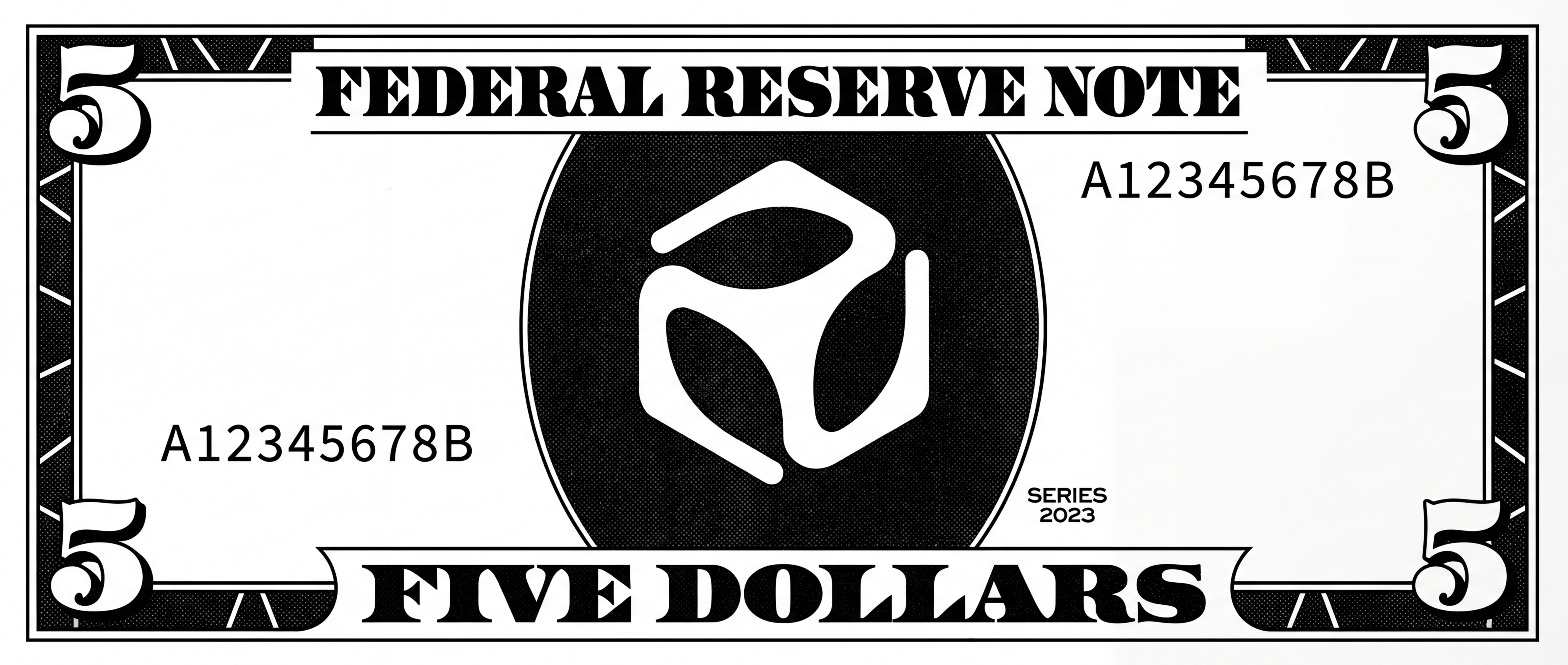
You've also got Meos Dollars. Hold onto them — they'll be worth something later.
QR won't scan: Try opening your camera app directly.
App won't install: Check storage space. Ask a facilitator.
Stuck on loading: Close and reopen. First launch takes a moment.
Press and hold the bottom centre of the screen
The radial menu will appear
Drag to Databox → Add Pad
Use the camera to photograph what's on your table
Menus, posters, business cards — at least 3 different items
Connect with your table on LinkedIn
Screenshot each other's LinkedIn profiles → capture into MEOS
Radial menu doesn't appear: Press and HOLD (not tap) the very bottom centre. Then drag upwards.
Camera not working: Check camera permissions in your phone settings.
Photos look dark: Make sure there's enough light on the printed materials.
Open search (radial menu → Databox → Find)
Try: "where can I eat"
Did it find the menu?
Try: "that person who works at..."
Try: "something happening this weekend"
Try your own question — describe what you captured in your own words
Search returns nothing: The index might still be building. Wait 30 seconds and try again.
Wrong results: Try more descriptive terms. "Italian food near me" rather than "menu".
Open any pad you captured
Scroll down — you'll see related captures already there
Look at the connections. Were any of them unexpected?
Tap a connection to open it. Follow the thread.
Why this matters
Seeing associative connections between ideas literally builds new synapses in your brain. The more information you capture over time, the richer these connections become. Right now you might only have a handful of captures — but imagine what this looks like after a week, a month, a year of observing the world.
No connections showing: With only a few captures, connections may be sparse. Keep capturing — the more data, the more patterns emerge.
Connections seem random: They're based on meaning, not keywords. Sometimes the AI sees links you don't expect — that's the point.
Open the AI agent (radial menu → Agent)
Type exactly:
What do I know about the people at my table?
Read the response. Notice how it references your captures.
The agent cites specific pads — your LinkedIn screenshots, business cards, anything it found.
Tap a citation to open that pad in the Databox
This is the moment — a computer you can talk to, grounded in YOUR knowledge.
Tip: Switch modes
Press Ctrl + K to flip between modes — Databox, Agent, and more.
Agent not responding: It may take a few seconds to process your captures. Wait and try again.
No citations: The agent needs indexed content to reference. Make sure you've captured at least 3 items.
Citation won't open: Tap the highlighted reference text, not the surrounding area.
Don't panic. Your data is still on your phone. Nothing has been deleted.
This was a demonstration. Imagine if this was Notion, Google Keep, or Evernote — they can lock you out, because your data lives on their servers. With MEOS, your data is physically yours.
Want to keep playing?
Option 1: Tell the host your support code (the 6-character code on your lock screen). They'll unlock you instantly.
Option 2: Subscribe at meos.do/go:pay
The host will now show you Cloudless Beam — your phone powering any browser.
On your laptop, open any browser → getmeos.com
On your phone, radial menu → Link
Scan the QR code shown in your browser
Your desktop appears — powered by your phone
No login. No cloud. No account.
Open your pads from the desktop. Search from the desktop.
QR won't scan: Adjust phone distance and screen brightness.
Connection fails: Both devices must be on the same WiFi.
"Link" not found: Press and hold bottom centre, look for Link in the menu.
Your knowledge is on your phone. Keep capturing.
Capture ideas all week. The more you add, the smarter the connections become.